Template Builder 
Added in version 6.3.5.
The gateway uses message templates for every email it generates itself, for example the encrypted PDF email, the password notification email and the portal password reset email. These templates can be changed by an administrator on the Templates page (, see Templates).
An email template is a complete MIME-encoded message which is rendered with the Freemarker template engine when the email is sent. Writing a MIME message with a plain text part, an HTML part, embedded images and attachments by hand is cumbersome and error-prone. The Template Builder does this work for you: you compose the email, and the tool generates the raw MIME template which can be validated, tested and copied into the template setting.
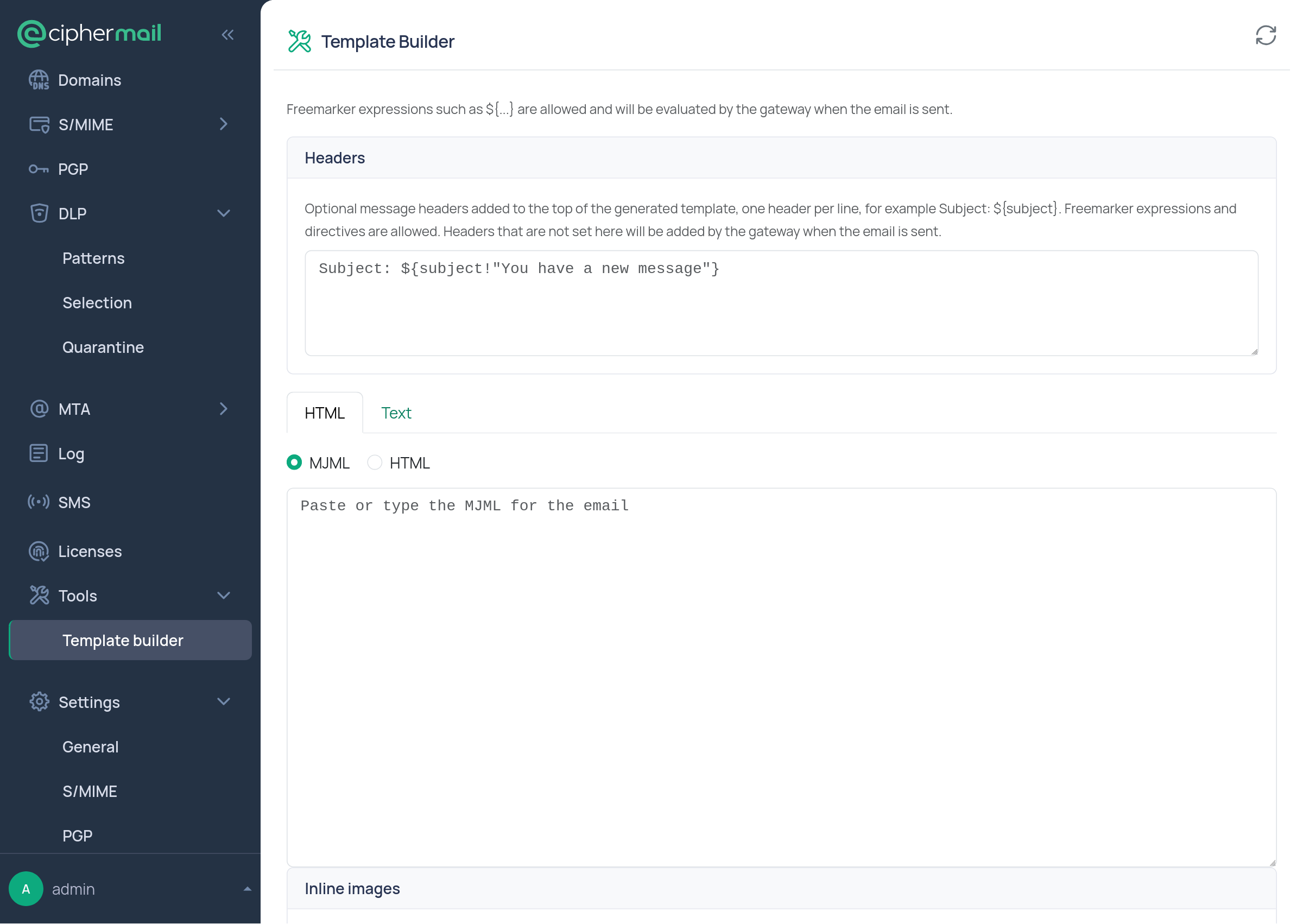
The Template Builder can be found under .
Note
The Template Builder is only shown if the admin has the
tool:validate-template permission (see Auth).
Hint
The Template Builder is a client-side application: the email is assembled and the MIME message is generated in the browser. Only validating a template and applying a template with test values is done by the back end. Images and attachments therefore only reach the gateway when the finished template is saved.
Composing the email
The email is composed from the following elements.
Headers
Optional message headers which are added to the top of the generated template, one header per line, for example:
Subject: ${subject!"You have a new message"}
Freemarker expressions and directives are allowed. Headers which are not set
here (for example From and To) are added by the gateway when the email is
sent.
HTML part
The HTML part of the email. The source can be entered in two formats:
- MJML
MJML is a markup language designed for responsive email. The MJML source is converted to HTML when the template is generated. Because email clients differ widely in their HTML support, MJML is the easiest way to create an email which renders correctly everywhere.
- HTML
The HTML of the email is used as-is.
Text part
An optional plain text alternative for the HTML part. If “Include a plain text
alternative” is enabled, a multipart/alternative email is generated with the
plain text part and the HTML part. Mail clients which cannot show HTML (or which
are configured to prefer plain text) then show the text version.
Tip
It is advised to always include a plain text alternative.
Inline images
Images which are embedded in the email itself so the mail client does not have
to download them from an external server. Every image gets a Content ID, which
defaults to the filename without the extension. The image can be referenced from
the HTML part with cid: followed by the Content ID:
<img src="cid:logo">
The exact reference to use is shown in the “HTML reference” column of the inline images table. The filename, content type and Content ID of an image can be changed after the image is added.
Attachments
Files which are attached to the generated email. Just like inline images, the filename and content type can be changed after a file is added.
Attention
Inline images and attachments are base64 encoded and stored inside the template, and therefore inside the gateway settings. Keep images and attachments as small as possible.
Generated message structure
The structure of the generated MIME message depends on which elements are used:
Content |
Structure |
|---|---|
HTML only |
a single |
HTML and inline images |
|
Text alternative and HTML |
|
With attachments |
|
The MIME boundaries are not fixed values but are written as the Freemarker
expression ${boundary!"boundary-not-set"}. The gateway provides a freshly
generated boundary every time an email is sent. Nested multiparts use the same
expression with a -<nesting level> suffix.
Generate, validate and apply
Three actions are available:
- Generate
Converts the MJML to HTML (if MJML is used), assembles the MIME message, validates it and shows the result on the “Template” tab. The generated template can be edited by hand on that tab. If the template was edited manually, a confirmation is asked before a new “Generate” overwrites those changes.
- Validate
Validates the (possibly manually edited) template on the “Template” tab without changing it.
- Apply with test values
Validates the template and renders it with test values for all the properties used by the standard gateway templates (for example
subject,originator,recipients,passwordandpasswordID). The result is shown on the “Output” tab. This shows what the final email will look like, and catches errors which only occur when a property actually has a value.
Validating is always done twice:
- Without values
The template must build correctly when no property has a value. This is required because the gateway validates a template in the same way when it is saved. Every Freemarker property must therefore have a fallback, for example
${subject!""}instead of${subject}.- With test values
The template must also build correctly when the properties have values.
If validation fails, the error reported by the template engine is shown.
Tip
The template and the output can be downloaded as template.eml and
output.eml. An .eml file can be opened with most mail clients, which
makes it easy to check how the final email is rendered.
Using the generated template
The generated template is not stored by the Template Builder itself. To start using it, copy the content of the “Template” tab into the relevant template setting on the Templates page ().
Alternatively, download the template and set it with the CLI:
ciphermail-cli property global set file --name template-encrypted-pdf --file template.eml
Note
The gateway validates a template when it is saved. If saving the template fails with a validation error, make sure that every Freemarker property has a fallback (see Generate, validate and apply).
Hint
SMS text templates are plain text and not MIME messages. The Template Builder is therefore only useful for email templates.